> ## Documentation Index
> Fetch the complete documentation index at: https://docs.agentkube.com/llms.txt
> Use this file to discover all available pages before exploring further.
# Set Up
export const DownloadButton = ({platform}) => {
const [downloadUrl, setDownloadUrl] = useState('');
const [loading, setLoading] = useState(true);
const [version, setVersion] = useState('');
useEffect(() => {
const CURRENT_VERSION = 'v0.0.12';
const getDownloadUrls = version => {
const versionWithoutV = version.replace('v', '');
return {
'mac-intel': `https://github.com/agentkube/agentkube/releases/download/${version}/Agentkube_${versionWithoutV}_x64.dmg`,
'mac-arm': `https://github.com/agentkube/agentkube/releases/download/${version}/Agentkube_${versionWithoutV}_aarch64.dmg`,
'windows-64': `https://github.com/agentkube/agentkube/releases/download/${version}/Agentkube_${versionWithoutV}_x64-setup.exe`,
'windows-32': `https://github.com/agentkube/agentkube/releases/download/${version}/Agentkube_${versionWithoutV}_x86-setup.exe`,
'linux-deb': `https://github.com/agentkube/agentkube/releases/download/${version}/Agentkube_${versionWithoutV}_amd64.deb`,
'linux-rpm': `https://github.com/agentkube/agentkube/releases/download/${version}/Agentkube-${versionWithoutV}-1.x86_64.rpm`
};
};
const downloadUrls = getDownloadUrls(CURRENT_VERSION);
setDownloadUrl(downloadUrls[platform]);
setVersion(CURRENT_VERSION);
setLoading(false);
}, [platform]);
const getPlatformName = platform => {
const names = {
'mac-intel': 'Mac Intel',
'mac-arm': 'Mac ARM',
'windows-64': 'Windows 64-bit',
'windows-32': 'Windows 32-bit',
'linux-deb': 'Linux (DEB)',
'linux-rpm': 'Linux (RPM)'
};
return names[platform] || platform;
};
if (loading) {
return ;
}
return ;
};
To get started, please ensure that your device meets the requirements, click the download link, and follow the instructions to install and run Agentkube.
**Minimum OS Version:** macOS 10.14
**Minimum OS Version:** Windows 10
**IMPORTANT (UNSIGNED APPS):** The Windows desktop version is not signed and the OS will try to block the app from running. When Windows warns you that the application is not signed, choose **"More info > Run anyway"** to proceed with the installation.
**Minimum OS Version:** Most modern Linux distributions
## Getting Started
Once you have downloaded and installed Agentkube:
### Login
1. **Open Agentkube** - Launch the application after installation
2. **Click Settings Icon** - Click on the settings icon in the top right corner
3. **Head to Account** - Navigate to the Account section
Troubleshoot: If the page keeps loading, right click and reload it once.
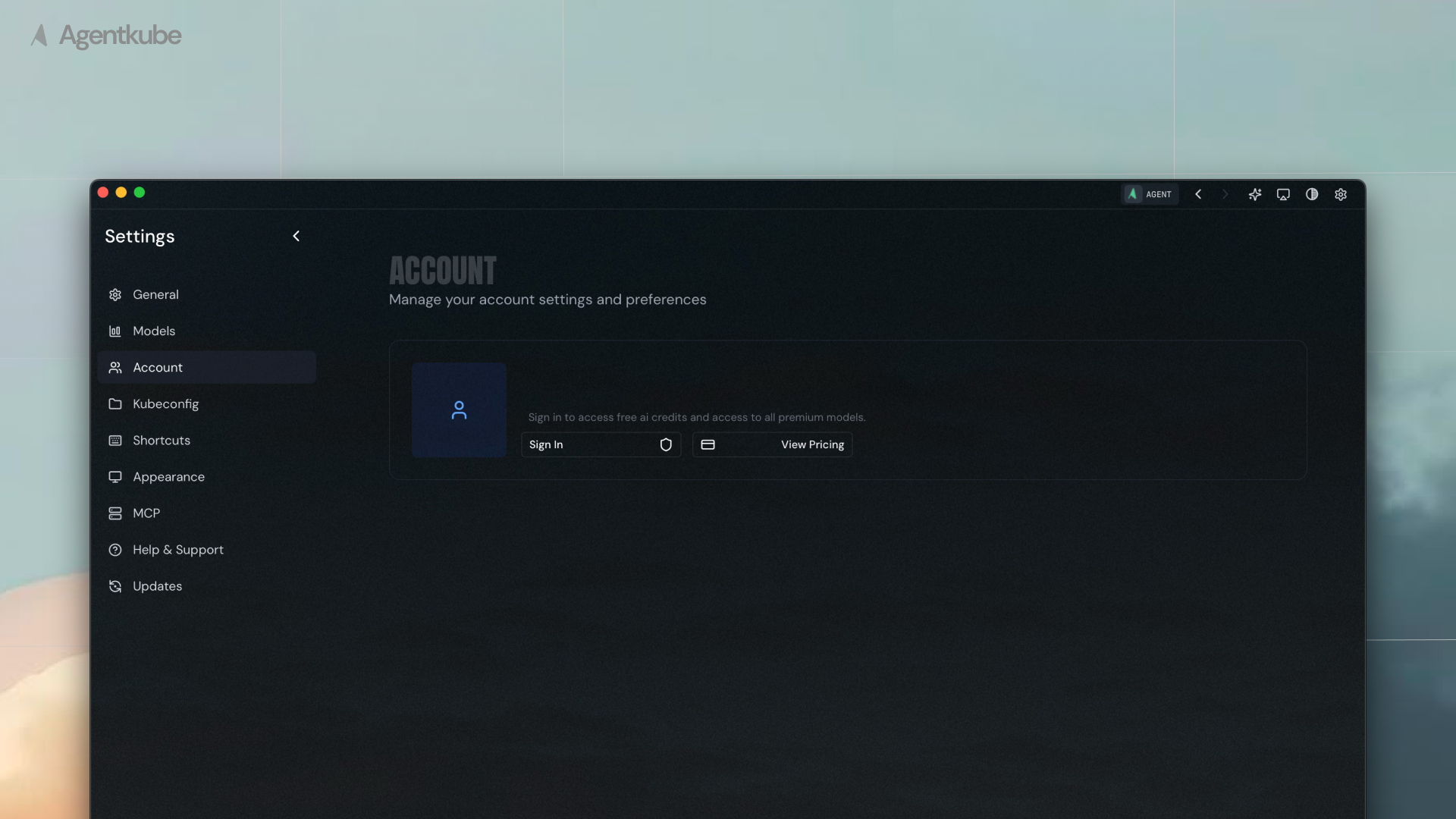 4. **Click Sign In** - This will open authentication in your browser
5. **Complete Authentication** - Follow the browser authentication flow
4. **Click Sign In** - This will open authentication in your browser
5. **Complete Authentication** - Follow the browser authentication flow
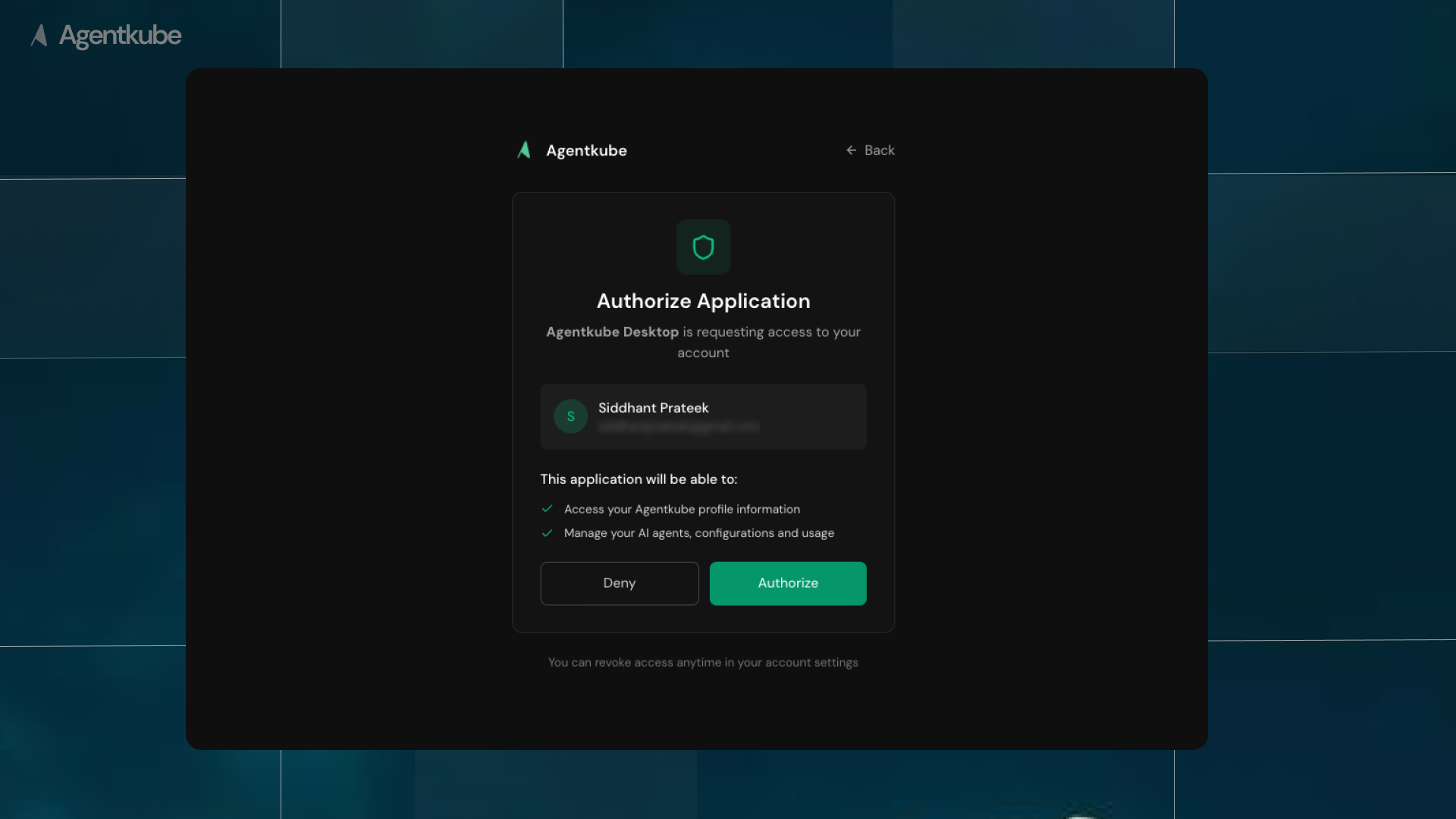 Sign up is completely free and you get free credits!
## Having Trouble?
If you're having trouble with the installation or setup process, please reach out to our support team at [support@agentkube.com](mailto:support@agentkube.com) or join our [Discord community](https://discord.gg/UxnwzcjMWA).
Sign up is completely free and you get free credits!
## Having Trouble?
If you're having trouble with the installation or setup process, please reach out to our support team at [support@agentkube.com](mailto:support@agentkube.com) or join our [Discord community](https://discord.gg/UxnwzcjMWA).