> ## Documentation Index
> Fetch the complete documentation index at: https://docs.agentkube.com/llms.txt
> Use this file to discover all available pages before exploring further.
# Inline Chat
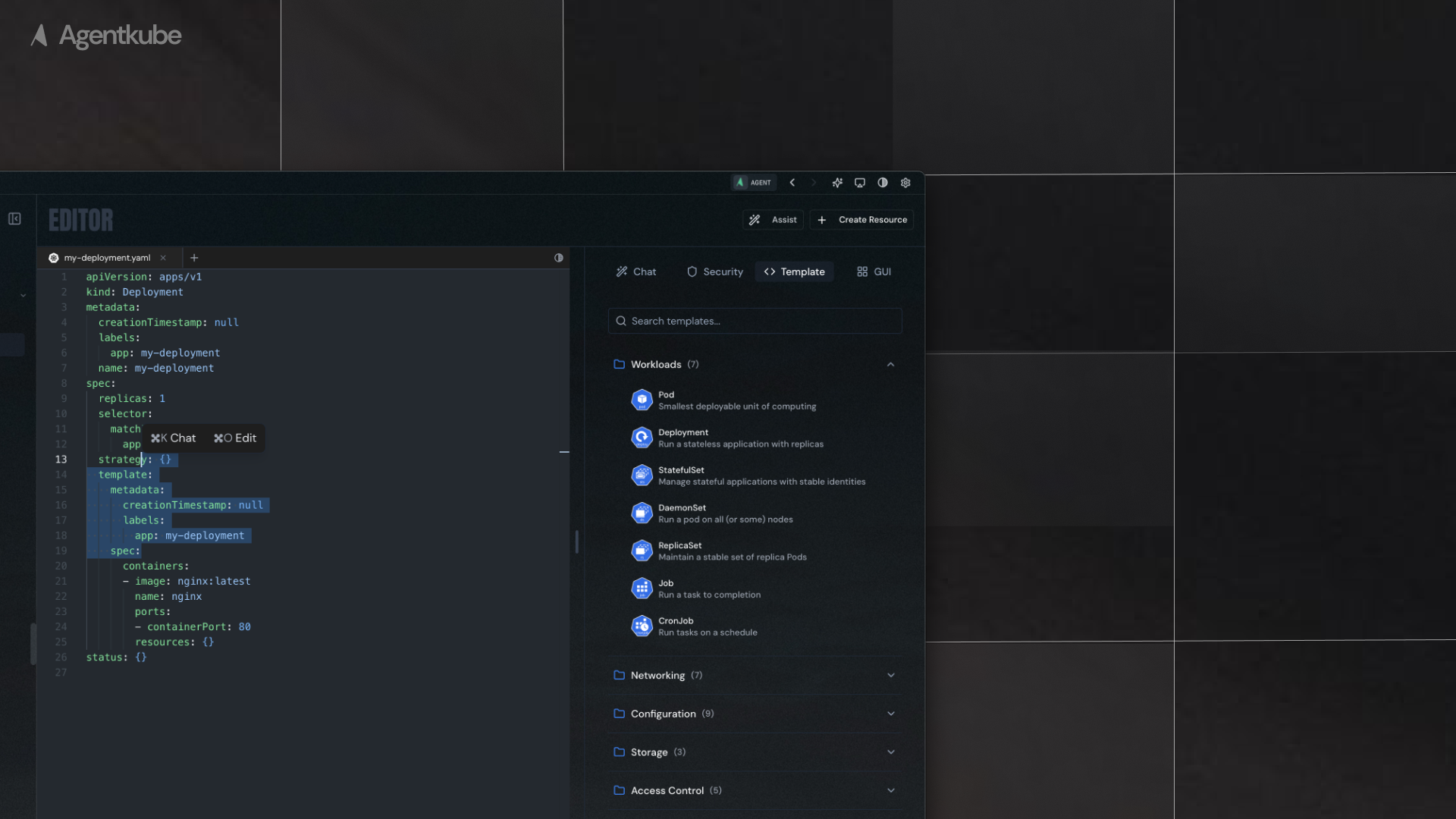
Agentkube provides inline chat functionality that allows you to quickly add specific context to your chat conversations. This feature is available for both resource editors and log viewers.
 ## Invoke Inline Chat
To invoke inline chat in any editor or log view:
1. Place the cursor in the editor or select specific log entries
2. Use the shortcut (macOS: `Command + I`; Windows: `Ctrl + I`)
## Add to Chat Functionality
Currently, Agentkube supports "Add to Chat" functionality rather than full inline editing capabilities. This allows you to:
### Resource Context
* Select specific Kubernetes resources in the editor
* Click `Add to Chat` or use the keyboard shortcut to send the selected resource context to the side chat
* The selected resource configuration, metadata, and relevant context will be automatically added to your chat conversation
### Log Context
* Select specific log entries in the log viewer
* Click `Add to Chat` to send the selected log entries to the side chat
* The selected log lines, timestamps, and associated pod/container context will be added to your conversation
* This enables you to ask specific questions about errors, warnings, or other log events
## How It Works
When you use `Add to Chat`:
1. **Resource Selection**: The selected Kubernetes resource YAML, metadata, and current status are captured
2. **Log Selection**: The selected log entries with timestamps and container context are captured
3. **Context Transfer**: The captured information is automatically sent to the side chat with appropriate formatting
4. **AI Understanding**: The AI assistant receives the context and can provide specific guidance, troubleshooting, or explanations based on the selected content
## Invoke Inline Chat
To invoke inline chat in any editor or log view:
1. Place the cursor in the editor or select specific log entries
2. Use the shortcut (macOS: `Command + I`; Windows: `Ctrl + I`)
## Add to Chat Functionality
Currently, Agentkube supports "Add to Chat" functionality rather than full inline editing capabilities. This allows you to:
### Resource Context
* Select specific Kubernetes resources in the editor
* Click `Add to Chat` or use the keyboard shortcut to send the selected resource context to the side chat
* The selected resource configuration, metadata, and relevant context will be automatically added to your chat conversation
### Log Context
* Select specific log entries in the log viewer
* Click `Add to Chat` to send the selected log entries to the side chat
* The selected log lines, timestamps, and associated pod/container context will be added to your conversation
* This enables you to ask specific questions about errors, warnings, or other log events
## How It Works
When you use `Add to Chat`:
1. **Resource Selection**: The selected Kubernetes resource YAML, metadata, and current status are captured
2. **Log Selection**: The selected log entries with timestamps and container context are captured
3. **Context Transfer**: The captured information is automatically sent to the side chat with appropriate formatting
4. **AI Understanding**: The AI assistant receives the context and can provide specific guidance, troubleshooting, or explanations based on the selected content