> ## Documentation Index
> Fetch the complete documentation index at: https://docs.agentkube.com/llms.txt
> Use this file to discover all available pages before exploring further.
# Marketplace
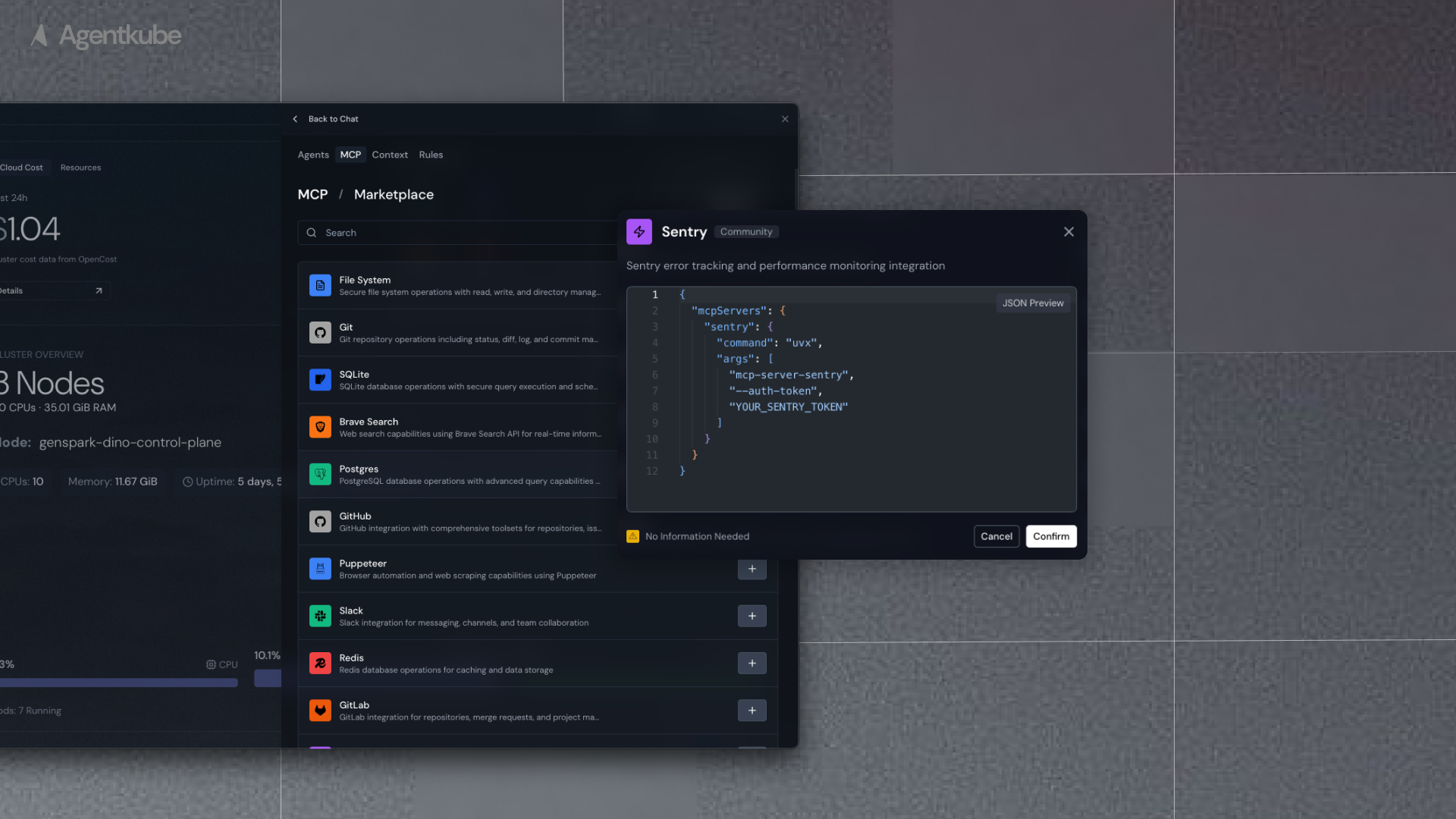
The MCP Marketplace provides a curated list of MCP (Model Context Protocol) servers that you can easily plug into Agentkube without needing to manually configure each server. This streamlines the process of adding powerful capabilities to your agents.
 ## Configure MCP Server
You can add desired MCP servers directly from the marketplace or add them manually.
### Method 1: Add from the Marketplace
The MCP marketplace offers popular MCP servers from the community that you can add to your project:
1. At the top right of the side chat box, click the **Settings** icon
2. Select **MCP** from the menu
3. The MCP tab appears
4. Click the **+ Add MCP Servers** button, or click the **+ Add** button and select **Add from Marketplace** from the menu
5. This directs you to the MCP marketplace
6. Find your desired MCP server
7. Click the **+** button at the right
8. In the pop-up window, fill the JSON configuration information for that MCP server
For MCP servers marked as "Local", NPX or UVX needs to be installed locally before they can be used.
9. Replace the env information (such as API key, token, and access key) with the real information
10. Click the **Confirm** button
### Method 2: Add Manually
If you do not find desired MCP servers in the marketplace or you want to use MCP servers developed by yourself, you can add them manually:
1. At the top right of the side chat box, click the **Settings** icon
2. Select **MCP** from the menu
3. The MCP tab appears
4. Click the **+ Add** button and select **Add Manually** from the menu
5. The Configure Manually window appears
6. Fill in the JSON configuration information for that MCP server
Preferably use NPX or UVX configuration.
#### Adding New MCP Server
* Enter the JSON configuration into the input box
* Click the **Confirm** button
* The MCP Server will be added to the MCP server list
## Configure MCP Server
You can add desired MCP servers directly from the marketplace or add them manually.
### Method 1: Add from the Marketplace
The MCP marketplace offers popular MCP servers from the community that you can add to your project:
1. At the top right of the side chat box, click the **Settings** icon
2. Select **MCP** from the menu
3. The MCP tab appears
4. Click the **+ Add MCP Servers** button, or click the **+ Add** button and select **Add from Marketplace** from the menu
5. This directs you to the MCP marketplace
6. Find your desired MCP server
7. Click the **+** button at the right
8. In the pop-up window, fill the JSON configuration information for that MCP server
For MCP servers marked as "Local", NPX or UVX needs to be installed locally before they can be used.
9. Replace the env information (such as API key, token, and access key) with the real information
10. Click the **Confirm** button
### Method 2: Add Manually
If you do not find desired MCP servers in the marketplace or you want to use MCP servers developed by yourself, you can add them manually:
1. At the top right of the side chat box, click the **Settings** icon
2. Select **MCP** from the menu
3. The MCP tab appears
4. Click the **+ Add** button and select **Add Manually** from the menu
5. The Configure Manually window appears
6. Fill in the JSON configuration information for that MCP server
Preferably use NPX or UVX configuration.
#### Adding New MCP Server
* Enter the JSON configuration into the input box
* Click the **Confirm** button
* The MCP Server will be added to the MCP server list